Choosing Between Hardware Upgrades and Settings Adjustments When a Game Update Raises System Requirements
A game update can sometimes reduce performance, even on a system that previously ran the game smoothly. Lower frame rates, stuttering, or longer loading times do not always mean your hardware is outdated. New graphics features, gameplay changes, or temporary optimization issues can all affect performance. Before upgrading your PC, it’s worth identifying whether the problem can be solved through settings adjustments, software updates, or whether new hardware is genuinely necessary.
Start by Understanding What Changed in the Update
Not every game update increases hardware requirements in the same way. Some updates improve graphics with higher-resolution textures, better lighting, or ray tracing, while others expand gameplay systems that place more work on the CPU, such as larger maps, additional NPCs, or more complex physics.
The patch notes and updated system requirements are good places to start. If your PC still meets the recommended specifications, the performance drop may be caused by graphics settings, driver compatibility, or temporary optimization issues rather than outdated hardware. If many players with similar systems report the same problem after the update, waiting for a hotfix may be a better decision than upgrading immediately.
Identify the Type of Performance Problem Before Looking for a Solution
Instead of focusing only on average FPS, pay attention to when performance drops. If frame rates stay low throughout the game, your GPU or CPU may be reaching its limits. If stuttering mainly occurs while loading textures, entering new locations, or during large battles, the problem may involve memory, storage performance, or CPU-intensive game systems rather than graphics settings alone.
These patterns help narrow down the source of the problem before you start changing settings or replacing hardware. Understanding whether the bottleneck is related to graphics, processing, memory, or storage makes it much easier to choose the right solution and avoid upgrading a component that isn’t actually limiting performance.
CPU-Limited Performance Requires Different Adjustments
A game update that introduces larger environments or more complex gameplay systems does not always place the greatest burden on the graphics card. Some patches significantly increase CPU workload by adding more AI characters, improving traffic systems, expanding physics calculations, or increasing simulation complexity.
In these situations, lowering graphics quality alone often produces little improvement because the processor, not the GPU, is limiting overall performance.
Instead, look for options related to crowd density, simulation quality, physics detail, object visibility, or draw distance. These settings directly affect how much work the processor performs every frame. Reducing them usually provides a greater benefit than disabling visual effects that primarily target the graphics card.
Monitoring frame-time consistency is also useful. A game may report a relatively high average FPS while still feeling noticeably less responsive because the CPU struggles to deliver frames consistently. Large frame-time spikes often create visible stuttering even when average frame rates appear acceptable.
Don’t Ignore Memory and Storage
If the game frequently freezes when loading new areas, rotating the camera, or streaming textures, the problem may be related to memory or storage rather than graphics performance. Closing unnecessary background applications can free up RAM, while installing the game on an SSD may reduce loading times and improve asset streaming.
However, faster storage is not a replacement for a more powerful CPU or GPU. If rendering performance is the main limitation, upgrading to an SSD alone will not significantly increase frame rates. It’s also worth updating graphics drivers and verifying the game files after a major update, as corrupted files or software issues can sometimes cause unexpected performance problems.
When Is a Hardware Upgrade Actually Necessary?
After testing the right graphics settings, updating drivers, and ruling out common software issues, you should have a much clearer idea of whether your current hardware is the real limitation.
A hardware upgrade becomes worthwhile when performance still falls below your target despite reasonable optimization, or when one component consistently limits gameplay across multiple modern games—not just after a single update.
It is also important to match the upgrade to your own expectations. A system that cannot maintain 4K at ultra settings may still deliver an excellent experience at 1080p or 1440p with optimized graphics. Before buying new hardware, decide what frame rate, resolution, and image quality you actually want to achieve.
Upgrade the Component That Matches the Actual Problem
Upgrading hardware becomes much easier once you know exactly what is limiting performance. Replacing the wrong component often produces only a small improvement while costing far more than necessary.
Instead of asking which part is the oldest, ask which part prevents the game from reaching your performance target after reasonable optimization.
The table below summarizes common symptoms, what to test first, and the hardware that is most likely to improve the situation if software adjustments no longer help.
| Performance issue | Test before upgrading | Hardware that may help |
|---|---|---|
| Low FPS at higher resolutions | Lower render resolution or enable DLSS, FSR, or XeSS | Graphics card |
| Frame-rate drops in crowded cities or large battles | Reduce crowd density, physics, or simulation settings | Processor |
| Texture streaming issues or VRAM warnings | Lower texture quality and monitor VRAM usage | Graphics card with more VRAM |
| System memory frequently reaches capacity | Close background applications and monitor RAM usage | Additional RAM |
| Long loading screens and asset streaming delays | Move the game to an SSD | SSD |
This comparison should not be treated as a strict rule. Some games stress multiple components simultaneously, and different game engines distribute workloads differently. Even so, identifying the symptom first dramatically increases the chance of choosing the correct upgrade.
A Graphics Card Upgrade Is Not Always the Complete Solution
Many players naturally look at the graphics card first because it has the greatest influence on gaming performance. In many situations, that assumption is correct. A GPU several generations behind the current recommended specification may struggle regardless of graphics settings.
However, replacing the graphics card alone does not guarantee better performance. A more powerful GPU also requires the rest of the system to keep up. If the processor cannot deliver data quickly enough, the graphics card may spend part of its time waiting rather than rendering new frames. Likewise, an older power supply may not provide the necessary connectors or wattage for newer hardware. Physical space inside the computer case should also be checked before purchasing larger graphics cards, which are often considerably longer and thicker than previous generations.
Display resolution also matters. Upgrading from a mid-range GPU to a flagship model provides far greater benefits at 1440p or 4K than at 1080p, where processor limitations become more noticeable in many games.
Rather than choosing the most expensive graphics card available, aim for hardware that matches both your monitor and your long-term gaming expectations.
CPU Upgrades Often Involve More Than the Processor
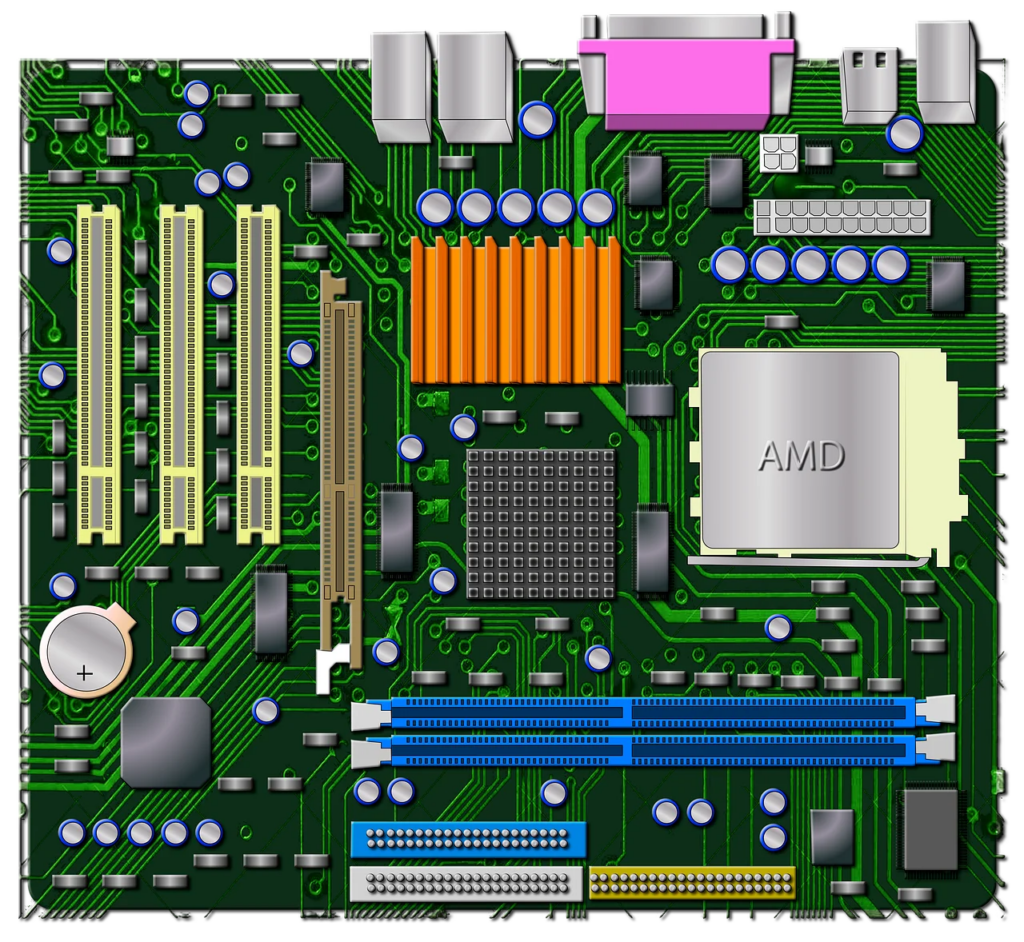
A newer CPU may require a different motherboard because of socket compatibility. Depending on the platform, it may also require newer memory standards, a BIOS update, or even a different cooling solution. These additional costs can quickly make what appeared to be a simple processor upgrade significantly more expensive.
For that reason, CPU upgrades usually make the most sense when multiple signs point to processor limitations rather than isolated performance problems in a single game.
If several modern games consistently struggle in CPU-intensive scenes despite reasonable graphics settings, investing in a newer platform may provide a better long-term experience than repeatedly upgrading smaller components.
A Practical Decision Checklist Before Buying New Hardware
Instead of making a decision immediately after noticing lower frame rates, work through a simple troubleshooting process.
Step 1: Understand what the update changed
Read the official patch notes and compare the updated minimum and recommended system requirements with your current hardware. Features such as ray tracing, higher-resolution textures, larger environments, or expanded AI systems often explain why performance changed after the update.
Step 2: Eliminate software-related causes
Install the latest graphics driver recommended for the game, verify the integrity of the game files, disable unnecessary overlays or background software, and check whether the developer has acknowledged any performance issues affecting the latest version.
Step 3: Measure before changing anything
Monitor frame rates, frame times, CPU usage, GPU usage, VRAM consumption, system memory, and temperatures while playing the same section of the game. Measuring consistent gameplay scenarios makes comparisons much more reliable than moving between different areas.
Step 4: Optimize settings that match the bottleneck
Reduce only the settings related to the suspected limitation instead of lowering every option simultaneously. Test the game after each adjustment and keep notes of the results.
Step 5: Upgrade only after confirming the limitation
If performance still falls below your target after reasonable optimization, and repeated testing shows that one component is consistently limiting the game, upgrading that specific component becomes a much safer investment than replacing hardware based on assumptions.
Modern games continue evolving long after release, and system requirements often change as developers introduce new graphics technologies, larger environments, and more demanding gameplay systems. While these updates sometimes justify new hardware, they do not automatically mean your current PC has reached the end of its useful life.
A careful approach—understanding the update, identifying the real bottleneck, testing targeted settings, and evaluating long-term value—helps ensure that every upgrade addresses an actual limitation rather than a temporary performance issue. By treating hardware upgrades as the final step instead of the first response, you can often achieve a better gaming experience while avoiding unnecessary expense.